
PDF files are great for sharing documents, but editing them can be difficult without paid software. If you need to fix a typo, update content, or reuse text from a PDF, converting it into a Word document is often the easiest and fastest solution. This guide explains multiple ways to convert PDF files to Word and shows how our free PDF to Word converter makes the process simple and efficient.
Why Convert PDF to Word free?
PDFs are designed to preserve layout and formatting across devices, which makes them ideal for sharing. However, this same strength becomes a limitation when you need to edit text, adjust paragraphs, or reuse content. Word documents, on the other hand, are fully editable and allow you to make changes quickly.
By converting a PDF file to Word, you gain access to all the editing tools available in Microsoft Word. You can correct spelling mistakes, change formatting, add new sections, and update existing content without starting from scratch. This is especially helpful for reports, notes, articles, and business documents.
Method 1: Convert PDF to Word for free – Using Google Docs
Google Docs offers a free and easy way to convert PDF files into Word documents. If you already have a Google account, you can use this method without installing any additional software.
- Open Google Docs and sign in to your account.
- Upload the PDF file you want to convert.
- Open the uploaded file using Google Docs.
- Download the file as a Microsoft Word (.docx) document.
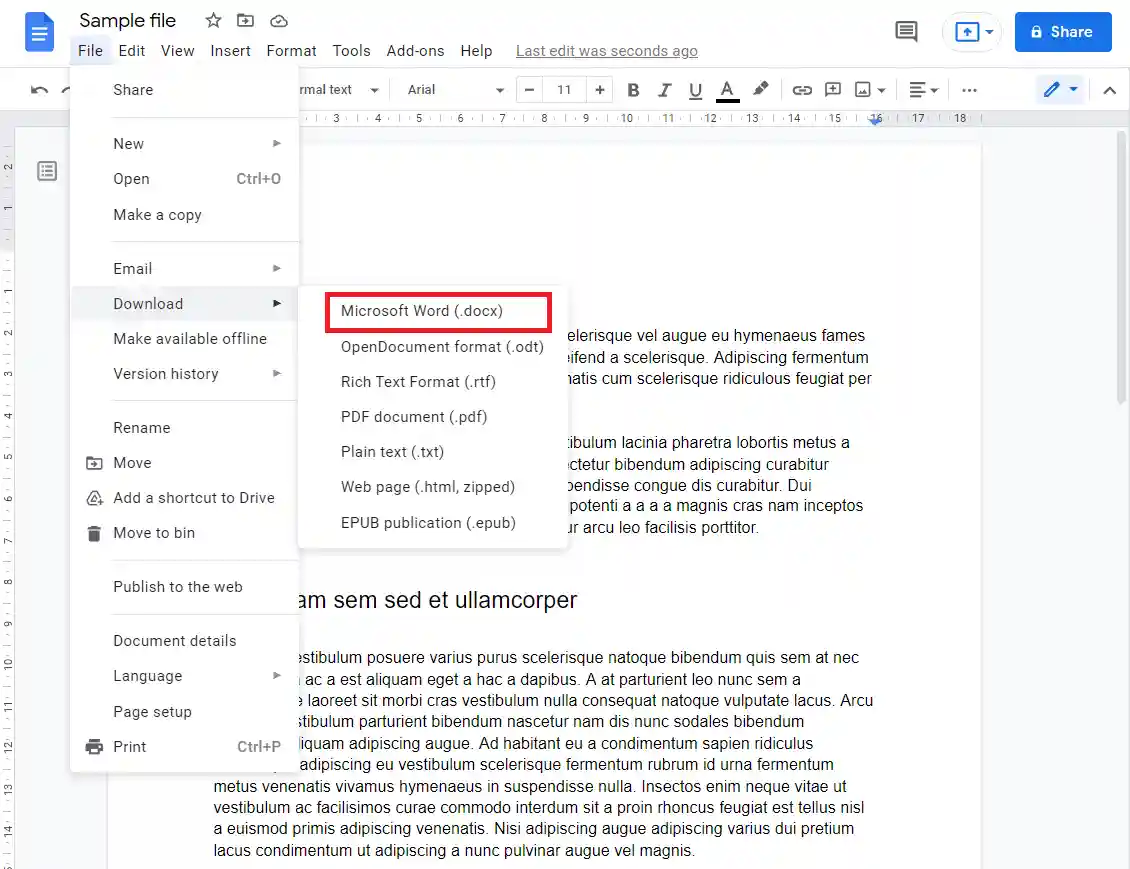 Google Docs PDF Upload and Conversion
While this method is convenient, it has some limitations. Images, tables, and complex formatting may not be preserved correctly. Margins and line spacing can also change, requiring manual adjustments after conversion. Google Docs works well for basic text but may not produce consistent results for more complex documents.
Method 2: Free Convert PDF to Word – Using Microsoft Word
Microsoft Word itself can open and convert PDF files. This option is useful if you already have Word installed and want to keep everything within a single program.
- Locate the PDF file on your computer.
- Right-click the file and choose to open it with Microsoft Word.
- Allow Word to convert the PDF into an editable document.
- Edit and save the file as needed.
Although this method is quick, formatting issues are common. Page breaks, images, and tables may shift, and some elements may not be editable. For professional documents, these formatting changes can require additional cleanup work.
Method 3: Convert from PDF to Word free – Using Online Tool
Our free PDF to Word converter is designed for fast and simple conversion of text-based PDF files. It works directly in your browser and does not require any software installation. You simply upload your PDF file, start the conversion, and download the Word document.
Select or drag and drop your PDF file into the tool.
Click the convert button to start the process.
Wait a few seconds while the file is processed.
Download the converted Word document and edit it freely.
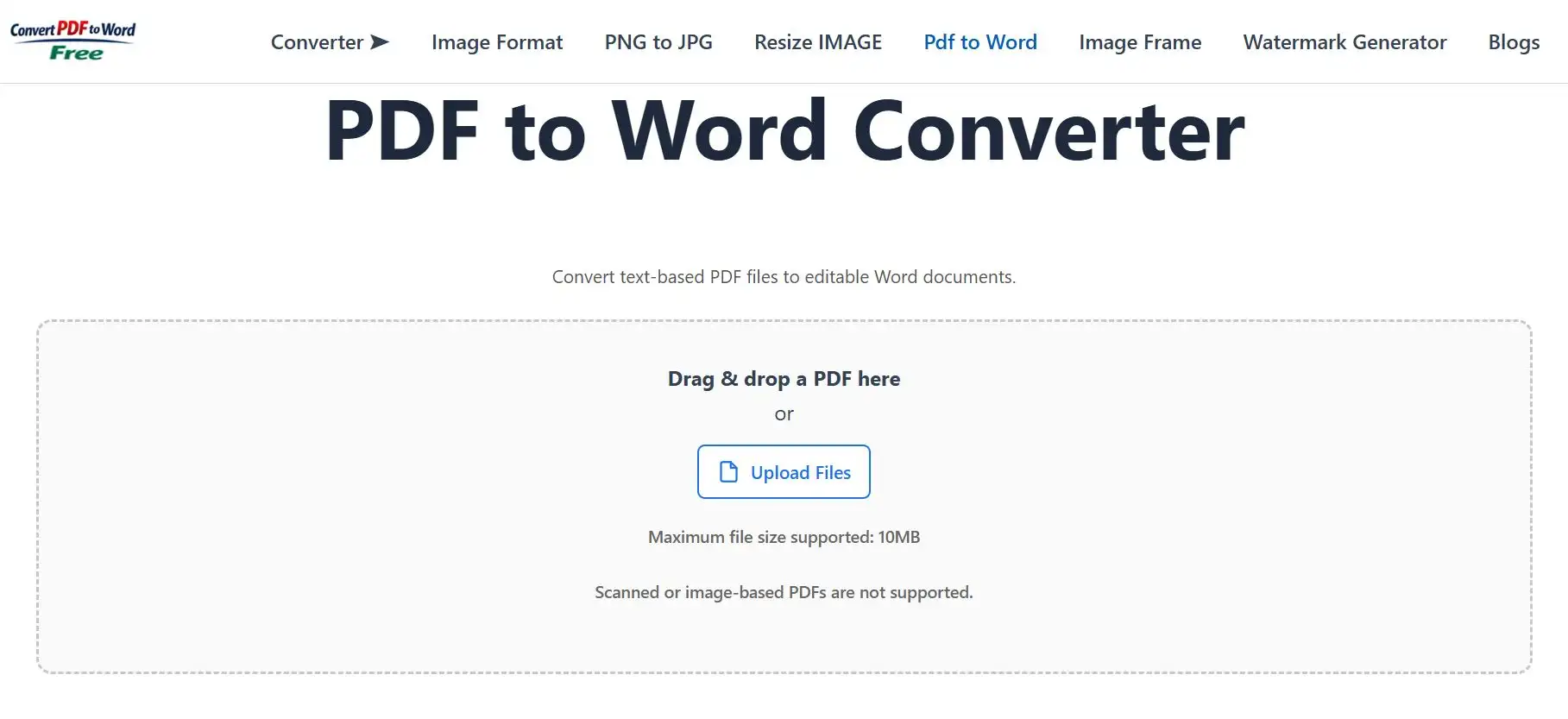 PDF to Word Converter Interface – Drag & drop a PDF here or Upload Files
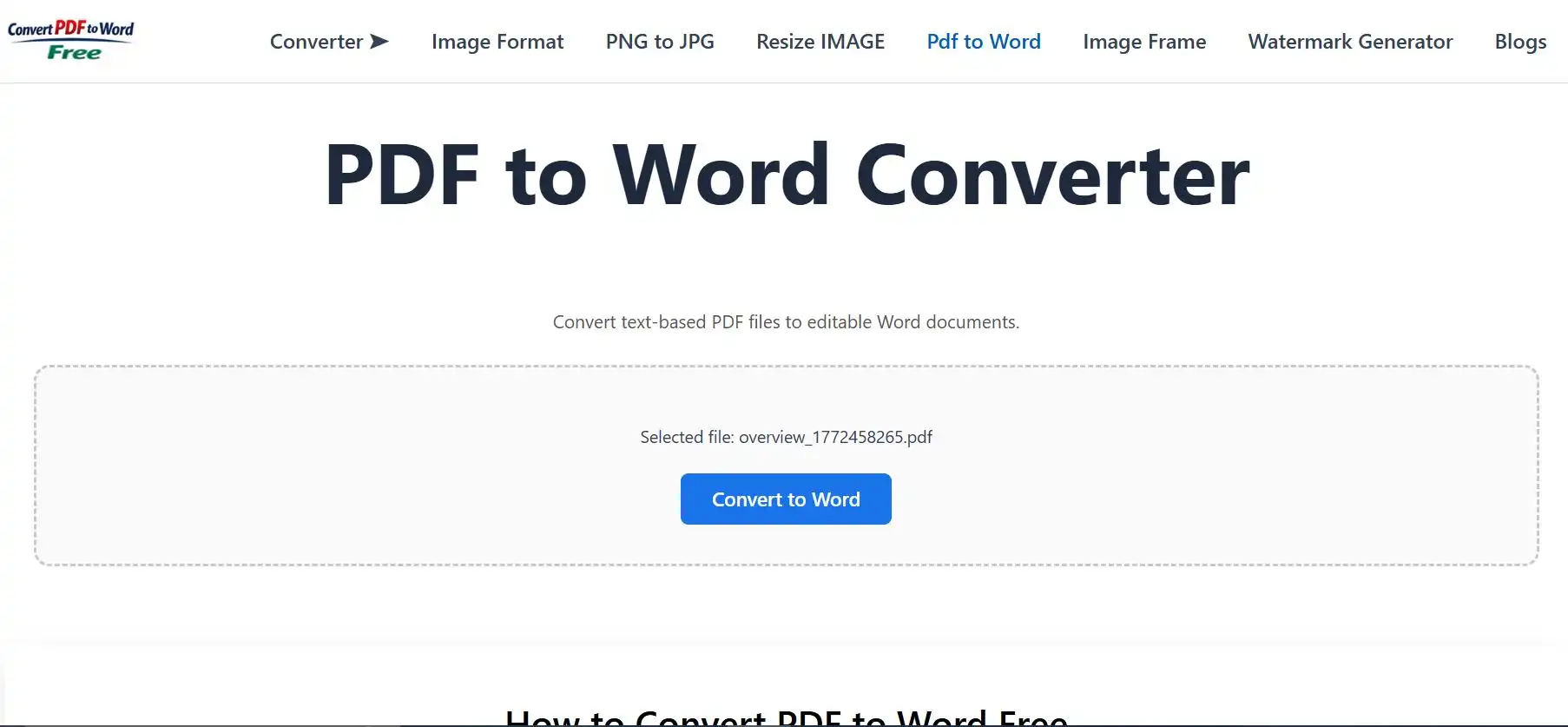 PDF to Word Converter free Interface – Convert to Word
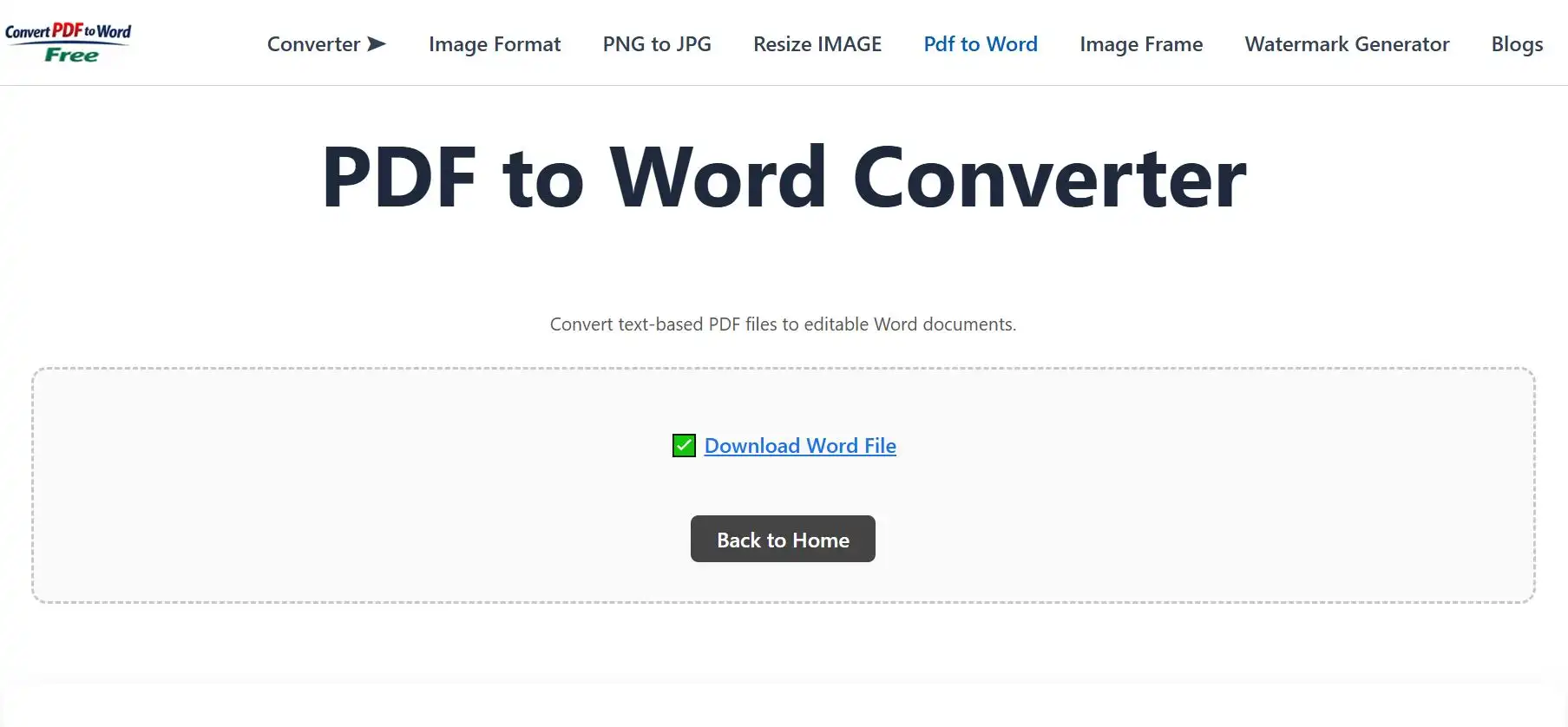 Convert PDF to Word for free Interface – Download Word File
Our tool focuses on simplicity and speed. It works best with PDFs that already contain selectable text. Because the conversion happens online, you can use the tool on Windows, macOS, Linux, or mobile devices without any compatibility issues.
Security and File Privacy – Free PDF to Word Converter
File security is an important concern when using online tools. Our PDF to Word converter processes files securely using encrypted connections. Uploaded files are handled automatically and are not shared with third parties.
Converted files are removed from the server after a short period to reduce data retention. This ensures that your documents are not stored longer than necessary.
Limitations You Should Know – Free Convert from PDF to Word
While our tool works well for text-based PDFs, scanned or image-based PDFs require advanced OCR processing. Password-protected PDFs may also need additional steps before conversion. For these cases, an advanced converter option may be required.
Converting a PDF file to Word is one of the easiest ways to edit and update document content. Whether you choose Google Docs, Microsoft Word, or our free online PDF to Word converter, each method has its own advantages and limitations.
For quick, browser-based conversion of text-based PDFs, our tool provides a simple and reliable solution. Upload your file, convert it, and start editing in Word within seconds.